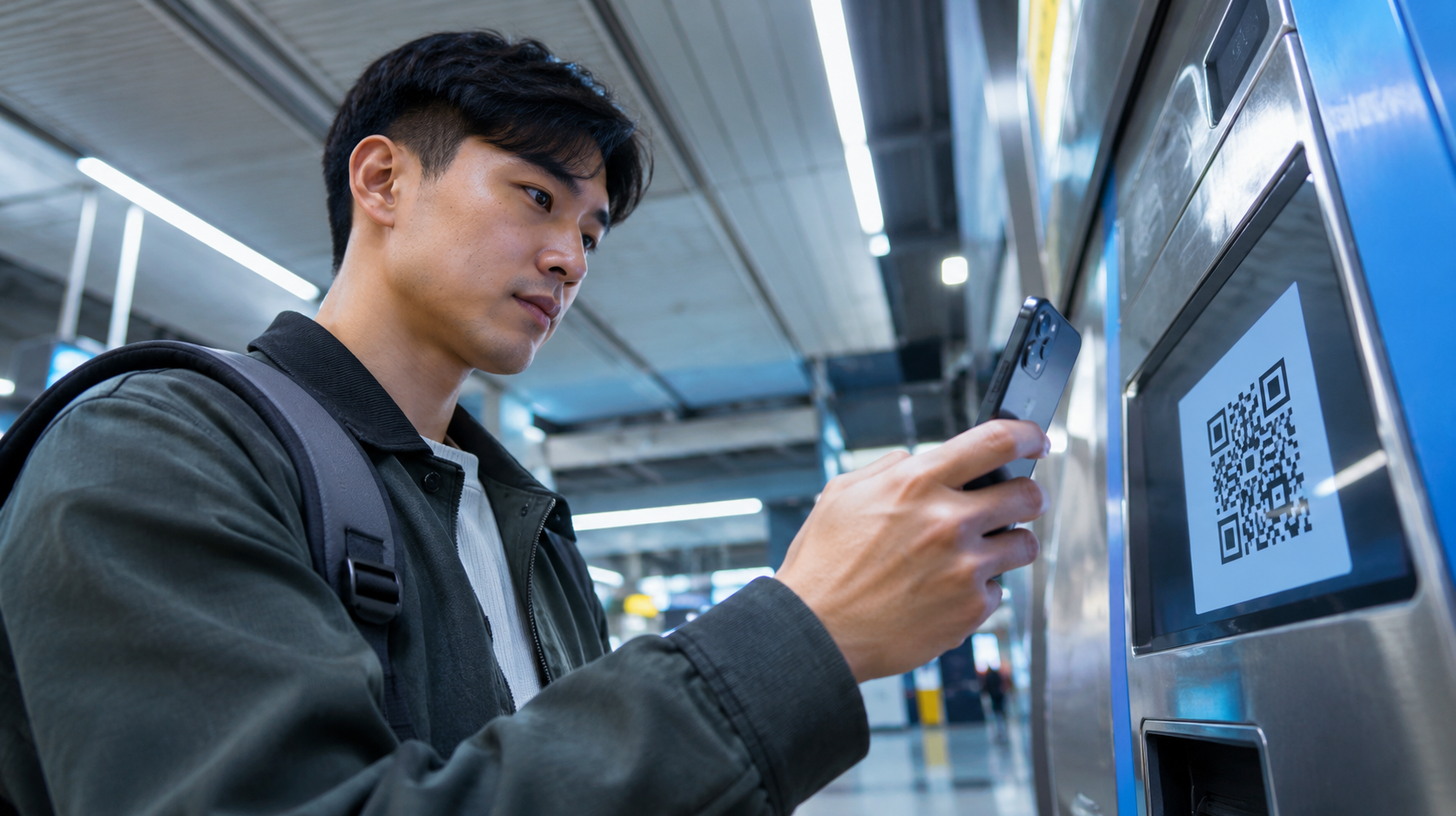
QR codes are everywhere: on products, ads, tickets, restaurant menus, and payment screens. They open websites, offer discounts, and connect to Wi-Fi. Most phones scan them with a built-in camera.
This guide covers camera scanning, codes in screenshots, common problems, and Tera’s professional barcode scanners for business use.
What is a QR code?
A QR code, short for Quick Response code, is a two-dimensional barcode. Its square pattern stores links, text, contact details, or Wi-Fi settings that a camera can read.
QR codes appear on posters, packaging, receipts, and tickets. A restaurant code might open a menu. A product code may lead to instructions or a warranty page.
Unlike a traditional one-dimensional barcode, a QR code can hold more data and can be read from several angles. Its design can handle minor damage, but missing sections or poor contrast may prevent scanning.
Phones suit everyday tasks. Dedicated 2D scanners help with frequent scans in stores and warehouses. QR data can often be read without an internet connection, but opening a linked website or completing an online payment may still require mobile data or Wi-Fi.
Effortlessly scan a QR code on a phone
Open the camera, frame the code, and select the result. Controls vary by phone and software version.
Using the built-in camera
The built-in camera is the easiest choice. No separate photo is needed.
Step-by-step instructions:
- Open the camera app. Select the normal Photo mode rather than Video or Portrait mode.
- Point the camera at the QR code. Keep the entire square visible, including the blank border around it.
- Wait for recognition. A link, banner, or small notification should appear on the screen.
- Check the result and tap it. The phone may open a website, show text, or offer an action in another app.
Important tips:
- Lighting: Use steady, even light. A flashlight can help with a printed code in a dark area.
- Positioning: Keep the device still and leave enough space around the code for the camera to focus.
- Distance: Move slightly closer or farther away until the square looks sharp.
- Camera lens: Wipe away fingerprints or dust if the image looks hazy.
If the code is not detected, check the scanning settings or try another built-in tool. A code printed on glossy paper may need a different viewing angle. When the camera keeps focusing on the background, move farther back before trying again. A clear view of the whole square works better than extreme zoom.
How to scan a QR code on Android
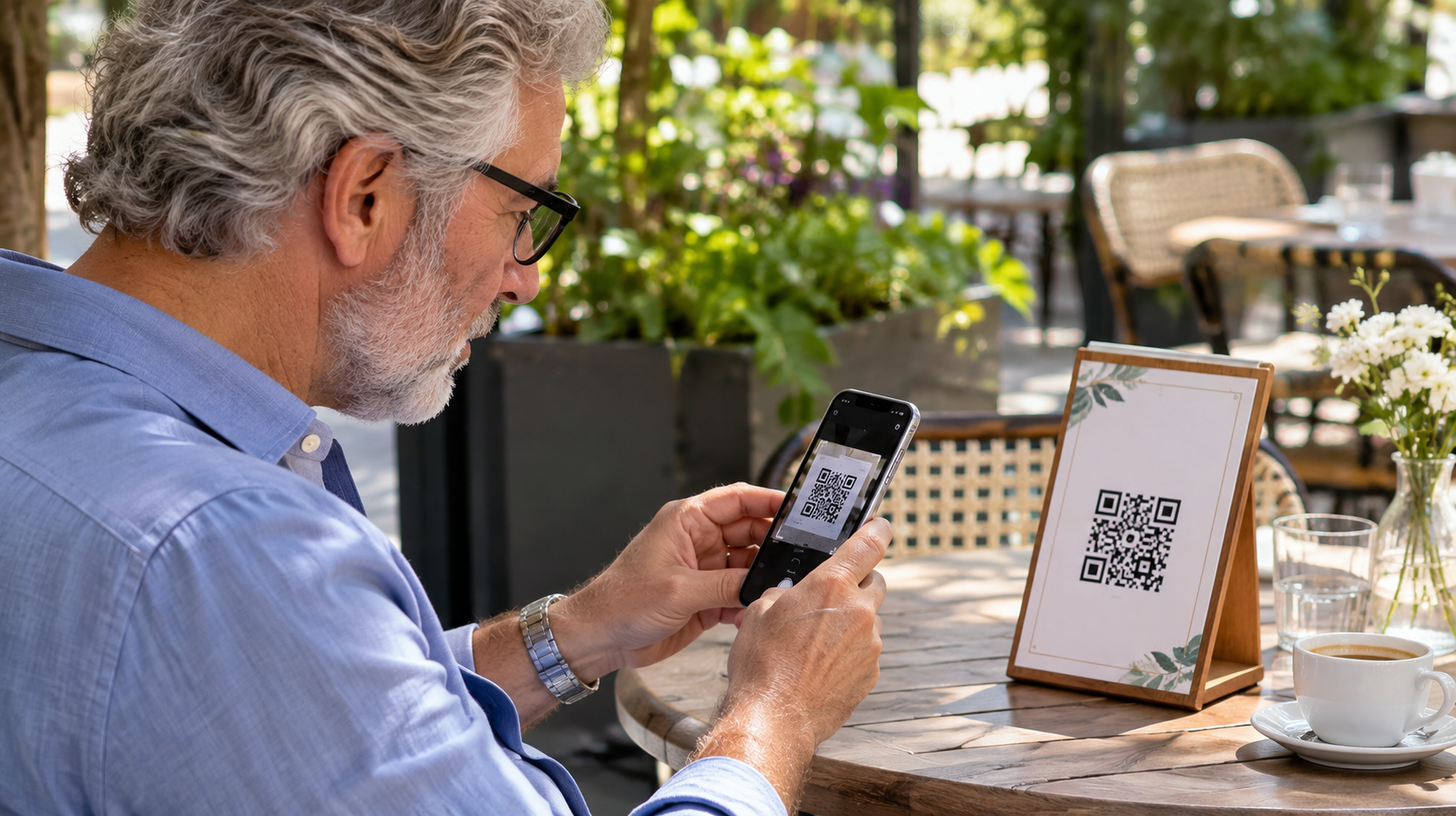
Most Android phones scan codes with Camera. Pixel and Galaxy models often include a Scan QR code shortcut in Quick Settings. Other brands may use a different name:
- Open Camera and select Photo mode.
- Aim at the QR code and wait for a link or banner.
- Tap the link after checking the destination.
- If nothing appears, swipe down to open Quick Settings and look for Scan QR code. On some phones, another swipe or an Edit control reveals additional shortcuts.
On Galaxy phones, check Camera settings for Scan QR codes. On Pixel, check Camera scan suggestions. Google Lens is another option.
These steps show how to scan QR codes on Android without an extra app. Controls may differ on older devices; Google Lens offers another path.
How to scan a QR code on iPhone
An iPhone can scan printed and on-screen codes with Camera or Code Scanner in Control Center:
- Open Camera in Photo mode.
- Place the QR code inside the viewfinder.
- Wait for the link to appear near the bottom of the screen.
- Tap the link to open the associated content.
For a dedicated scanner, open Control Center and select Scan Code. If the control is missing, touch and hold an empty area of Control Center, choose Add a Control, and add Code Scanner. The scanner supports a flashlight; compatible models also offer Camera Control.
No separate app or captured photo is required. When a QR code does not appear in Camera, confirm that Photo mode is selected and that the code is not cut off by the edge of the viewfinder.
Using a QR code scanner app
An extra app helps with older cameras or advanced scanning tasks.
When to use an app:
- Unrecognized codes: A compatible reader may add QR support to an older phone.
- Image imports: Some readers scan saved photos and screenshots as well as live camera views.
- Extra features: Certain apps create QR codes, keep a local history, or export scanned information.
- Business tasks: Specialized software can record multiple scans and send data to a stock or sales system.
App recommendations
App stores list tools named QR Code Reader or Barcode Scanner; some Scanbot products also cover barcode tasks. Features vary, so check reviews, descriptions, and permissions before installing.
A basic reader needs camera access, not unrelated permissions. Built-in tools and Google Lens remain better for occasional scans. Scan history can store sensitive details, so review the app’s privacy options.
Snap to scan: scanning a QR code from an image or screenshot
A saved QR code can be read without another screen. This helps with emailed tickets, invoices, and offers.
This method also shows how to scan a QR code from a picture stored on a phone.
Using the phone’s gallery
Step-by-step guide:
- Open the image. Find the picture or screenshot in Photos, Google Photos, or the phone’s gallery.
- Make the code visible. Ensure the full square is shown, with its edges and blank border intact.
- Choose a recognition tool. On Android, open the image in Google Photos and select Google Lens, often under the More menu. On iPhone, try pressing and holding the code in Photos if recognition is available, or open the image with Google Lens in the Google app or Google Photos.
- Review the result. Select the recognized link or action only after checking that it matches the expected content.
Some Samsung Gallery versions include image recognition. The Google app can also analyze screenshots.
Cropping can help, but keep all four corners and the blank border visible. If multiple codes appear in one picture, focus the recognition tool on one square at a time. This helps avoid opening the wrong result.
Tools and apps
Google Lens reads stored images in Google Photos and the Google app. On some Android phones, it also works through Camera. Icon locations may vary.
Third-party tools may save scans, create codes, or export results. For a one-time scan, built-in options avoid extra downloads.
For retail, logistics, and industry, Tera provides scanners and Android mobile computers that capture barcode data for business software.
Tera’s barcode scanners and mobile computers
- Tera 8100DPM Pro wireless barcode scanner: This 2D scanner supports Direct Part Marking (DPM) and can read codes on some worn, reflective, or uneven surfaces. Its 1-megapixel imager supports small, dense barcodes down to 3 mil under suitable conditions. It suits detailed industrial tracking.
- Tera P160 Android barcode scanner: This rugged mobile computer combines an octa-core processor with a Zebra SE4710 scanning engine for 1D and 2D codes. It has IP65 protection, a 4,200 mAh battery, and a charging cradle. Its Android 10 platform calls for a software compatibility check.
- Tera P161 Android barcode scanner PDA: The P161 uses a Zebra SE4750MR 2D engine for scanning at greater distances. It features a removable 6,700 mAh battery and backup power for battery changes. An Android 13 configuration is also listed.
- Tera HW0009 2D barcode scanner with display screen: This handheld scanner reads 1D and 2D codes from labels and supported digital screens. A built-in display shows battery information and allows changes to sound, language, and connection settings. It supports Bluetooth, 2.4 GHz wireless, and USB.
Dedicated 2D scanners simplify frequent inventory scans. Results still depend on code quality, scanner settings, and software support. A 1D-only scanner cannot read QR codes.
Troubleshooting tips for saved images
Image quality often explains a failed scan:
- Image quality: Use the original image instead of a heavily compressed copy. Blurry or pixelated squares can lose important detail.
- Resizing: Enlarge a tiny code before scanning, but avoid heavy digital zoom that makes the pattern less clear.
- Contrast: Improve brightness or contrast when the code blends into the background. Do not apply filters that distort the squares.
- Cropping: Remove distracting content while keeping the full code and its light border.
- File access: Check whether the scanning app has permission to open the selected photo.
For a badly damaged image, request a new code.
How to scan QR codes from a screen
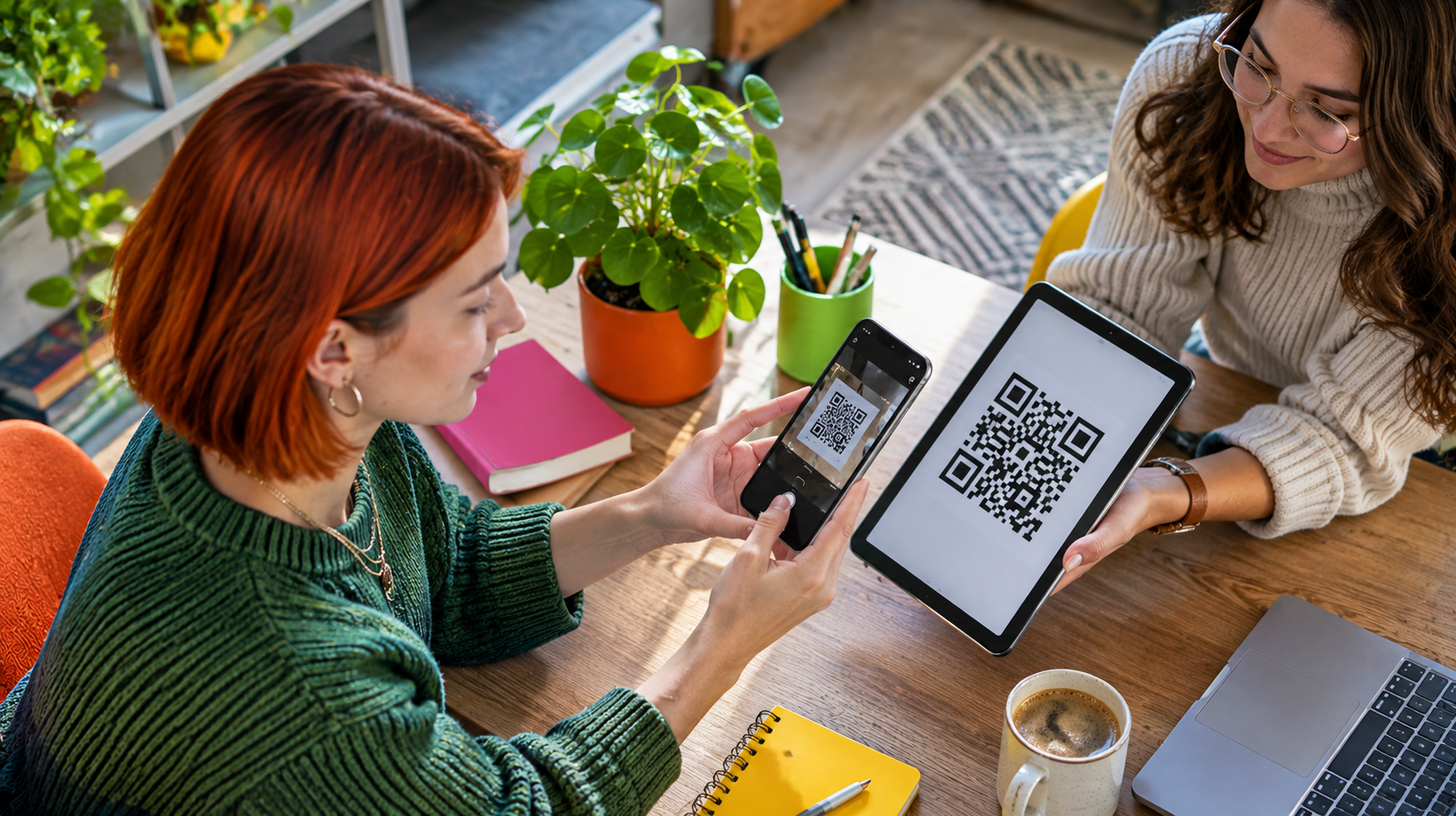
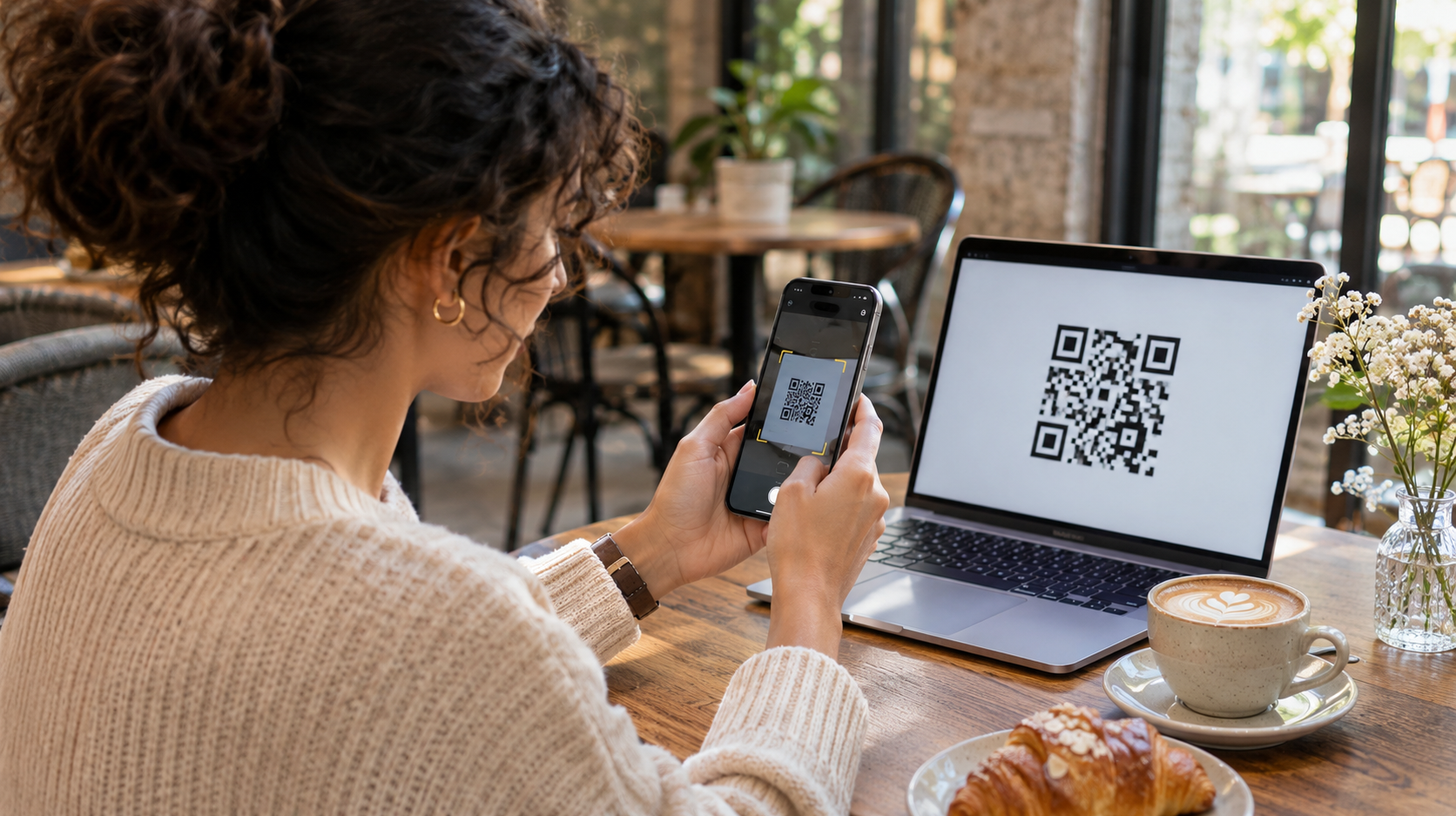
A QR code on a laptop, TV, or another phone can be scanned like a printed code. Glare and display size may affect the result.
Scanning a QR code on another device
Step-by-step instructions:
- Open the camera or built-in QR scanner on the phone.
- Point it at the code displayed on the second device.
- Adjust the distance until the entire square is clear and in focus.
- Wait for the link or action, then review it before opening.
Lower brightness to reduce glare, or enlarge the code. Leave enough distance for focus.
Scanning a QR code on the same phone
A camera cannot scan a code on the same phone’s display. A screenshot or screen-search tool solves this without a second device.
Android: Save a screenshot, open it in Google Photos, and run Google Lens. On supported Android devices, Circle to Search offers another method: touch and hold the navigation handle or Home button, then select the QR code on the screen. The available result depends on the device and app.
iPhone: Take a screenshot and open it in Photos. On supported models, press and hold the QR code to reveal a link or available action. If the phone does not recognize the code, open the screenshot with Google Lens through Google Photos or the Google app.
This works for codes in emails, PDFs, and websites. Some tickets use rotating codes, however, so an older screenshot may stop working. If a protected app blocks screenshots, use its built-in tools.
Common issues when scanning a screen
- Screen glare: Change the viewing angle or lower screen brightness slightly to reduce reflections.
- Small code: Zoom in on the webpage or enlarge the image without cutting off its corners.
- Focus problems: Keep the camera steady, clean the lens, and move back if the image is blurry.
- Moving content: Pause a video or stop scrolling before trying to scan.
- Low contrast: Use a clearer version of the code when the background blends into the pattern.
Small changes in focus or brightness often help.
What to do after scanning a QR code
After recognition, the phone shows a link, information, or an available action.
Understanding the action
Common QR code results include:
- Accessing a website: A browser opens a menu, product page, registration form, or service website after the link is selected.
- Opening an app: A supported code can lead to a specific page in an installed app or an official app store listing.
- Connecting to Wi-Fi: A network code can provide a connection prompt without manual entry of a long password.
- Saving contact details: Some codes contain a digital contact card that can be reviewed and saved.
- Getting tickets or coupons: Event passes, special offers, and loyalty information may appear after scanning.
- Making a payment: A code can open a supported payment app or checkout page, where the recipient and amount should be verified before approval.
A familiar logo does not prove that a link is safe. Check the content before taking action.
Privacy and security
A QR code can also hide a harmful link to a fake login page or payment form. Scammers sometimes cover real parking or public-service codes with fake stickers.
Simple safety checks
- Inspect the link: Read the domain in the preview before opening it. Misspellings, unusual endings, or unrelated websites are warning signs.
- Check the source: Look closely at public stickers and printed signs. A code placed over another label may have been tampered with.
- Avoid urgent requests: Treat codes in unexpected messages that demand immediate payments or password resets with caution.
- Verify payment details: Confirm the recipient, service, and amount inside the official payment app before approving a transaction.
- Limit app permissions: A basic QR reader should not need access to unrelated personal data.
- Keep software updated: Operating system and app updates help protect against known security issues.
If a suspicious page opens, close it. A padlock symbol or HTTPS connection only shows that the connection is encrypted; it does not confirm that a site is legitimate. If credentials were entered, change the password using the official app or website and check related accounts. Report payment concerns through trusted channels.
Scanning a QR code is quick with Camera, Google Lens, or image tools. Dedicated 2D scanners help with frequent business tasks. Always review links before opening them.